Auto-Classify Notion with AI Using Make.com
Connect Make.com, Airtable & ChatGPT to auto-classify your Notion knowledge base with multi-dimensional relations. Say goodbye to manual tagging.
Ready to automate?
Start building this workflow with Make.com — free forever on the starter plan.
Overview
This workflow connects Notion, Airtable, and OpenAI via Make.com to solve the biggest pain point in Notion knowledge management—manual classification and linking.
It’s not just simple tagging, but using AI to understand content and automatically establish physical database Relations:
- Get ID Mapping - Fetch category names and IDs from Airtable
- AI Decision - ChatGPT analyzes content and selects categories
- Auto-fill - Write relation IDs back to Notion database
- Multi-select Support - Supports multi-dimensional primary and secondary category relations
Core Value: Free your hands, cure choice paralysis, achieve automatic multi-dimensional knowledge structuring.
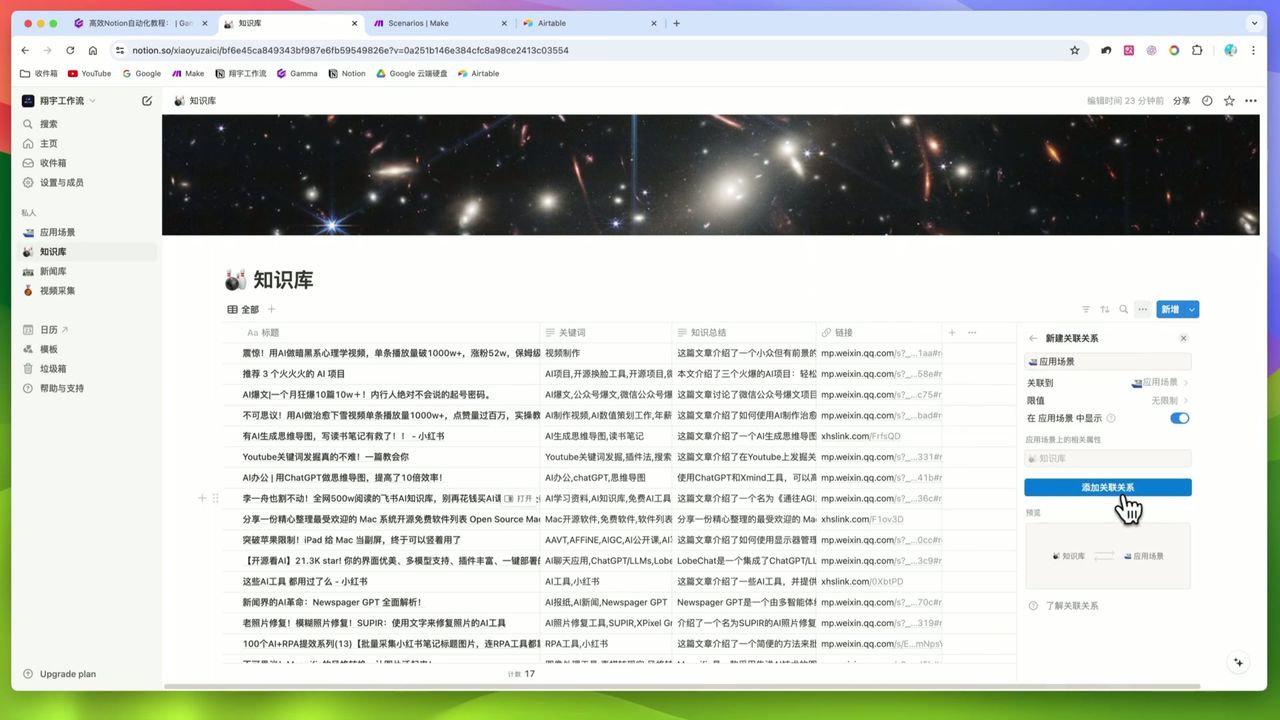 Core concept: Establishing relations between knowledge base and application scenario databases
Core Decision Factors
When deploying this type of automation system, focus on:
- API Mapping Capability - Can it accurately fetch Notion Database Item IDs
- Fault Tolerance - Does the workflow break when AI output format is incorrect
- Maintenance Cost - Do you need to rewrite Prompts when adding new categories
- Real-time Requirement - Accept scheduled organization or need second-level sync
Technical Specifications
| Component/Parameter | Setting | Notes |
|---|---|---|
| Core Tools | Make.com + Notion API | Logic orchestration & data transfer |
| Auxiliary Database | Airtable | Store category name-to-ID mapping |
| AI Model | GPT-3.5 | Semantic analysis & classification |
| Trigger Mechanism | Watch Database Item | Polling, not real-time |
| Batch Size | 20 items/run | Adjustable based on daily volume |
| Token Limit | Max 1000 | Cost control |
| Output Format | JSON Mode | Must enable |
| Key Formula | add(emptyarray; ID1; ID2) | Handle multi-select relations |
Prerequisites
Before starting, ensure you have:
- Make.com account (free registration)
- Notion account with knowledge base database
- Airtable account (for ID mapping)
- OpenAI API key
Notion Database Structure
Need two interrelated databases:
- Knowledge Base - Store notes, clippings, etc.
- Application Scenarios - Category tags (e.g., AI Art, Automation, Productivity Tools)
Add Relation property in knowledge base linking to application scenarios database.
Workflow Architecture
The entire workflow has three core steps:
Step 1: Get “IDs” (ID Extraction)
For Notion to know which entry to link notes to, using “names” alone isn’t robust—must use IDs.
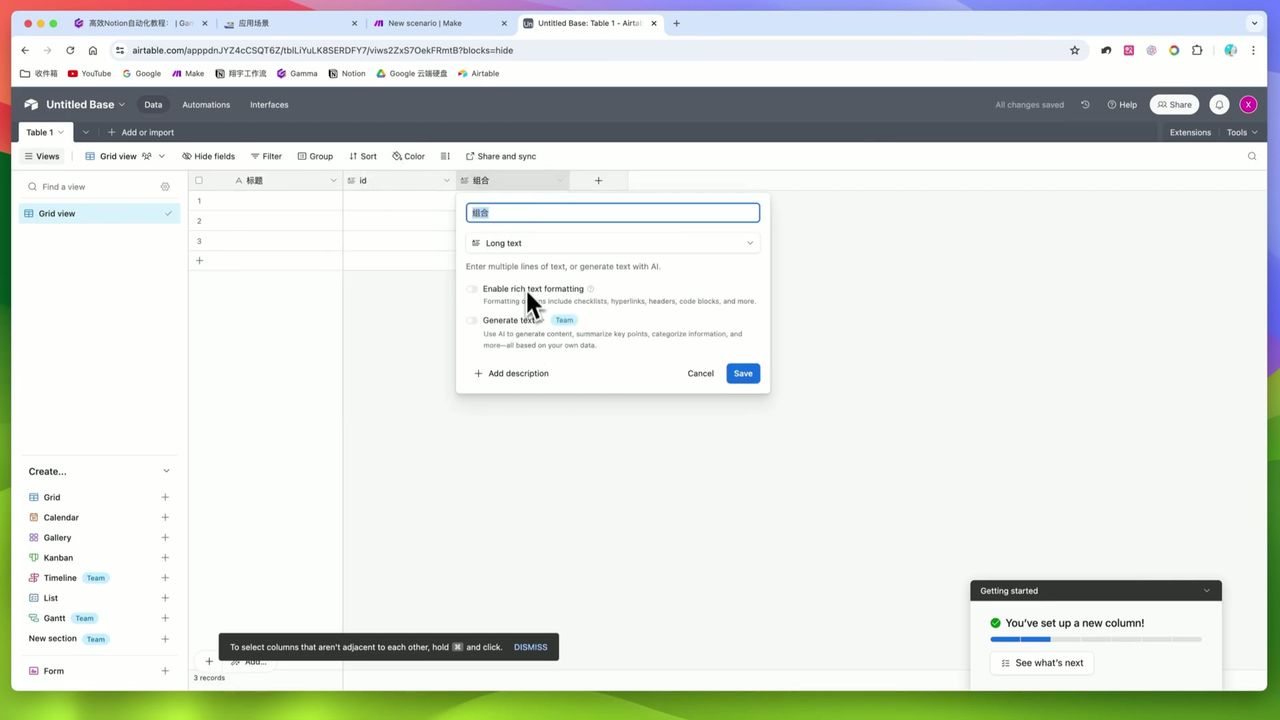 Combining names and IDs in Airtable
Use Airtable as intermediary station to combine Notion “Application Scenario” titles and IDs into strings:
AI Art(ID: xxx-xxx-xxx)
Automation(ID: yyy-yyy-yyy)
Productivity Tools(ID: zzz-zzz-zzz)
This format is convenient for ChatGPT to understand.
Step 2: AI Decision (Classification Brain)
Use ChatGPT 3.5 as “classification expert”.
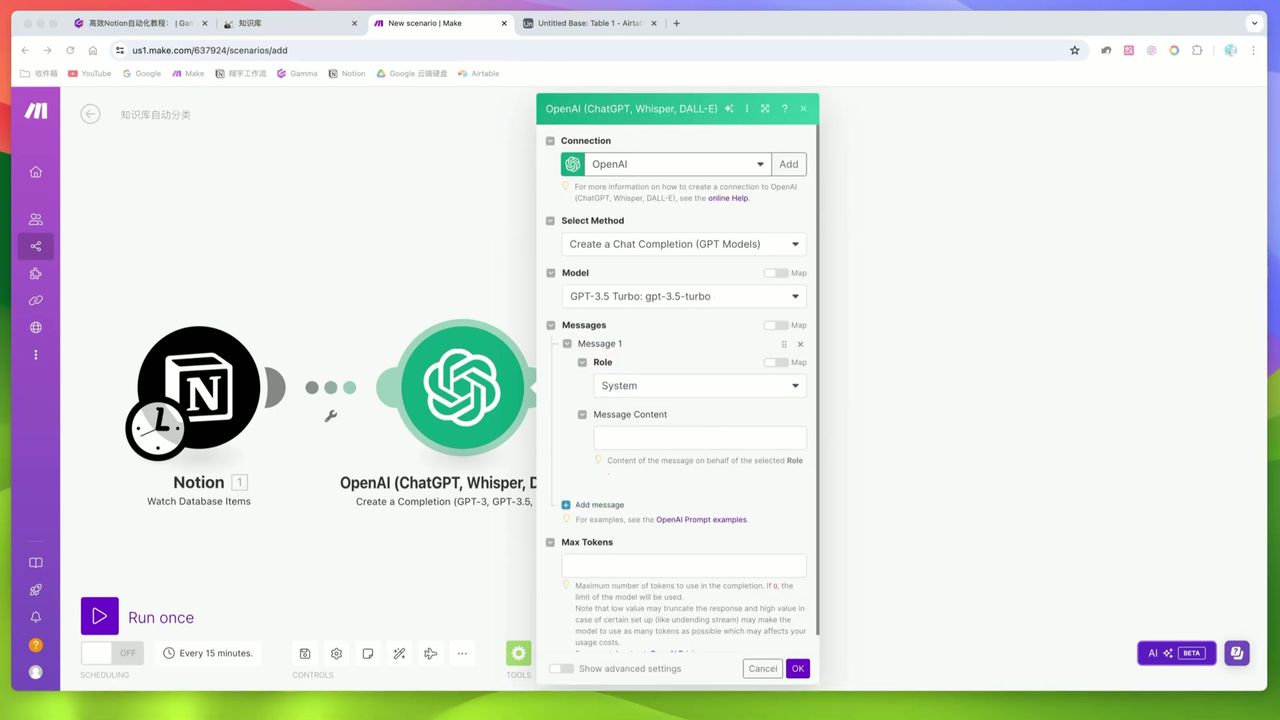 Configuring AI classification instructions and category list
Key Configuration:
- Enable JSON Mode - Must enable to force AI structured output
- System Prompt Design:
You are a knowledge base classification expert. Based on provided note content, select the most appropriate 1-2 categories from the following list:

{{Category list from Airtable}}

Output format:
{
  "primary": "Primary category ID",
  "secondary": "Secondary category ID (optional)"
}
JSON Mode solves the previous problem of AI verbosity and format chaos causing automation errors.
Step 3: Auto-fill (Execute Write)
The most exciting part is backfilling, supporting not only single-select but multi-select relations.
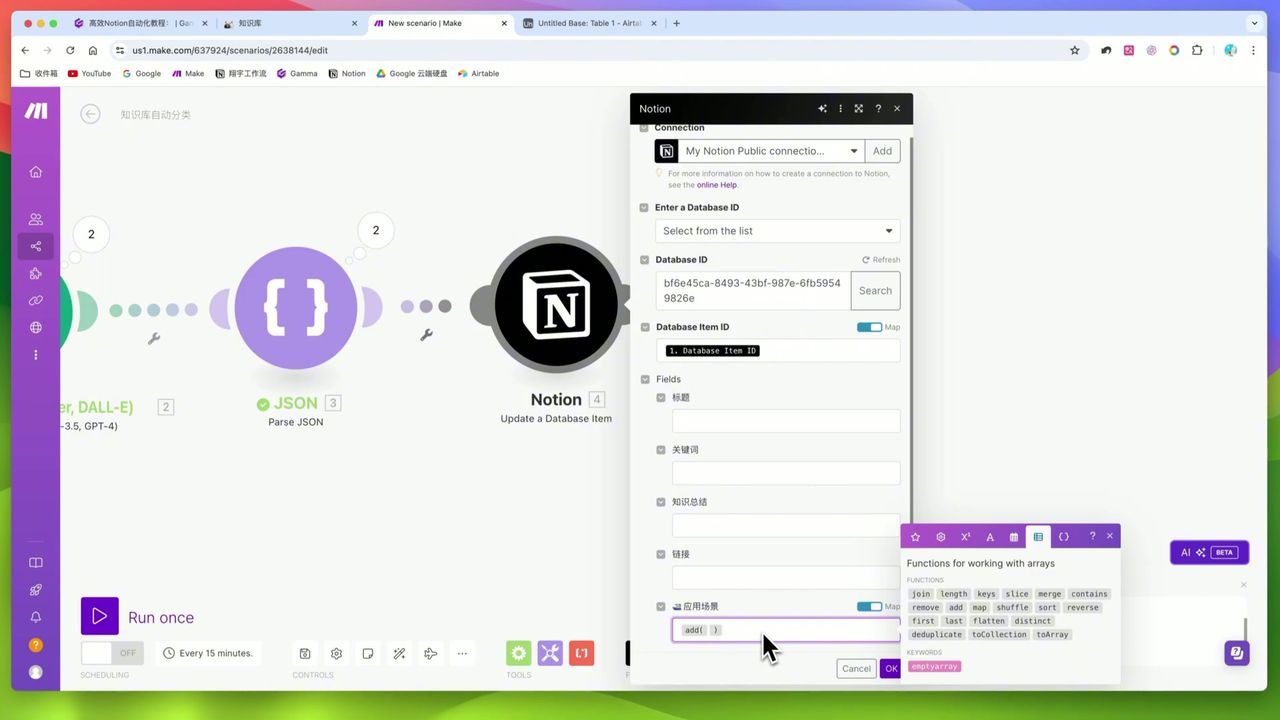 Correct way to insert semicolons (gray background)
Parse AI’s answer via Make’s JSON Parse module, then use add formula to write multiple IDs to Notion’s Relation property:
add(emptyarray; {{primary_id}}; {{secondary_id}})Important: Semicolons must be generated via panel clicks (gray background). Hand-typing keyboard semicolons breaks formulas!
Gotchas
Before actual deployment, know these potential pitfalls:
-
Non-real-time Sync - Solution uses polling mechanism; new notes aren’t classified immediately, wait until scheduled time for batch processing
-
Category Maintenance “Hardcoding” - Airtable’s ID list needs manual updates to ChatGPT Prompt. Must manually maintain when adding categories
-
Semicolon Input Trap - Make’s
addformula semicolons must be click-generated, not hand-typed -
Cost Consumption - Each run consumes Make Operations and OpenAI API Credits
Use Cases
Recommended Users
- Notion Power Users - Have massive knowledge bases, manual organization overwhelming
- Content Creators - Need automatic cross-indexing of materials from different dimensions
- Automation Enthusiasts - Want to learn deep Notion control via APIs and IDs
May Not Suit
- Users with extreme real-time requirements (need Webhook solution)
- Users completely resistant to JSON, Array, API ID concepts
- Users unwilling to pay any fees for API calls
FAQ
Is this solution real-time sync?
Current solution uses polling mechanism, not real-time. New notes are batch-processed at scheduled intervals. Real-time requires Webhooks.
What to do when adding new categories?
Manually update the ChatGPT Prompt in Make, adding new category names and IDs to the list, otherwise AI cannot recognize new categories.
Why use Airtable instead of Notion directly?
Airtable temporarily stores category name-to-ID mappings, easier to format for AI comprehension than direct Notion manipulation.
Why must semicolons be clicked to generate in Make?
In Make’s array formulas, semicolons must be generated via panel clicks (gray background). Keyboard-typed semicolons break formulas. This is where beginners commonly get stuck.
Next Steps
After mastering the basic workflow, you can try:
- Using Webhooks for real-time triggering
- Adding more classification dimensions
- Integrating other AI models to optimize classification precision
- Setting up error handling and retry mechanisms
Questions? Feel free to leave comments!
FAQ
- Is this solution real-time sync?
- Current solution uses polling mechanism, not real-time. New notes are batch-processed at scheduled intervals. Real-time requires Webhooks.
- What to do when adding new categories?
- Manually update the ChatGPT Prompt in Make, adding new category names and IDs to the list, otherwise AI cannot recognize new categories.
- Why use Airtable instead of Notion directly?
- Airtable temporarily stores category name-to-ID mappings, easier to format for AI comprehension than direct Notion manipulation.
- Why must semicolons be clicked to generate in Make?
- In Make's array formulas, semicolons must be generated via panel clicks (gray background). Keyboard-typed semicolons break formulas.
Start Building Your Automation Today
Join 500,000+ users automating their work with Make.com. No coding required, free to start.
Get Started FreeRelated Tutorials
Make.com Tutorial: Build Your First Workflow in 5 Minutes
Make.com Core Concepts: Automation Fundamentals Explained
Build YouTube Data Archive in Notion with Make.com & Apify
Automate Research Paper Summaries with Make.com
About the author
Alex Chen
Automation Expert & Technical Writer
Alex Chen is a certified Make.com expert with 5+ years of experience building enterprise automation solutions. Former software engineer at tech startups, now dedicated to helping businesses leverage AI and no-code tools for efficiency.
Credentials