Build YouTube Data Archive in Notion with Make.com & Apify
Automate YouTube video data collection with Make.com and Apify. Extract titles, views, subtitles and save to Notion for AI content creation.
Ready to automate?
Start building this workflow with Make.com — free forever on the starter plan.
Overview
This is an enterprise-grade video data collection solution tailored for content creators and data analysts.
By combining Apify’s powerful scraping capabilities, Make.com’s logic orchestration, and Notion’s database management, you can achieve fully automated YouTube video archival:
- Input Channels - Batch input multiple YouTube channel links
- Data Collection - Apify automatically scrapes video metadata and subtitles
- Data Processing - Iterator splits each video for processing
- Smart Filtering - Filter handles videos without subtitles
- Archive Storage - Automatically writes to Notion database
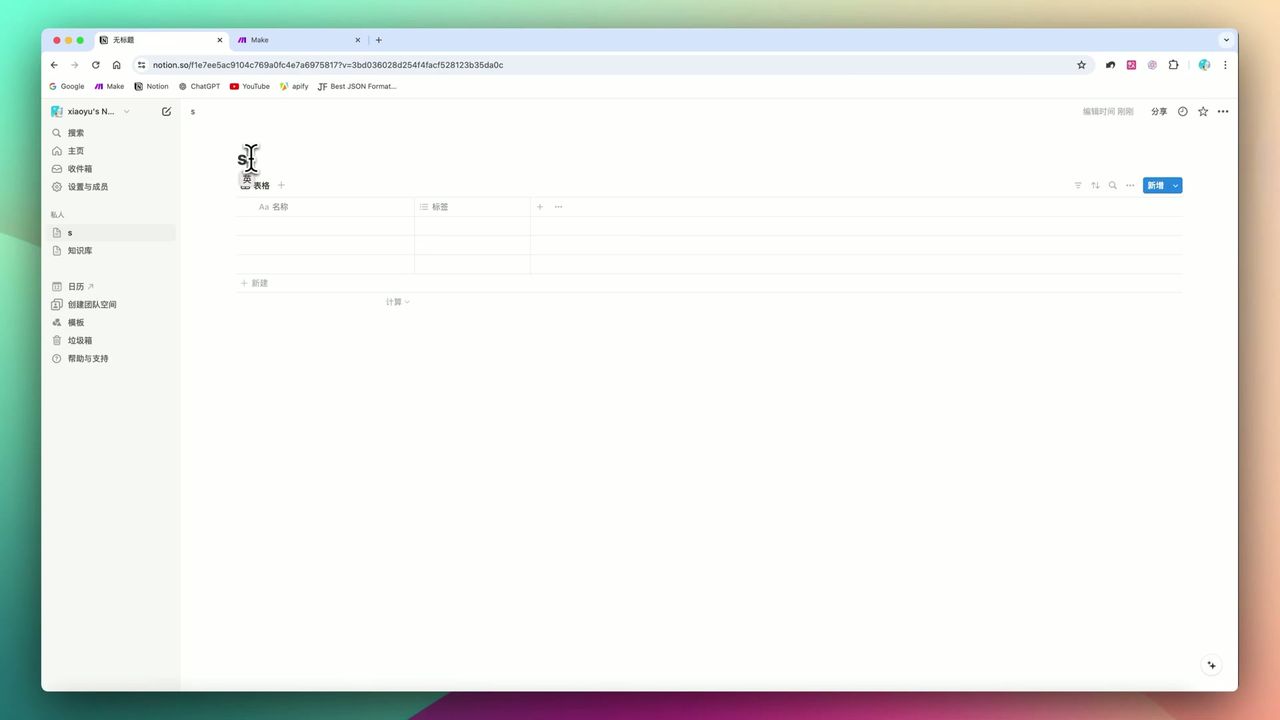 Database schema design including title, URL, views, and other core fields
Core Decision Factors
When choosing a video data collection solution, consider:
- Configuration Barrier - Whether coding is required (this solution needs no low-level code but requires JSON understanding)
- Data Granularity - Can it scrape subtitles, thumbnails, likes, and other deep data
- Error Handling - Will the workflow break when encountering videos without subtitles
- Scalability - How easy is it to add new monitoring channels
Technical Specifications
| Specification | Value | Notes |
|---|---|---|
| Core Platform | Make.com | Logic orchestration and data flow |
| Scraping Engine | Apify | YouTube Scraper Actor |
| Target Database | Notion | Store metadata and gallery view |
| Trigger Method | Manual/Scheduled | Supports batch or periodic updates |
| Max Scrape Count | Configurable | 20/500/1000, etc. |
| Wait Timeout | 120 seconds | Make waits for Apify completion |
| Data Fields | Title/Duration/Views/Likes/Subtitles | Covers core metadata |
| Time Filter | thisWeek/thisYear | Filter by time range |
Prerequisites
Before starting, ensure you have:
- Make.com account (free registration)
- Apify account and API key (apify.com)
- Notion account and database
Notion Database Structure
Create a video library with the following fields:
- Title (Title) - Video title
- URL (URL) - Video link
- Channel (Text) - Channel name
- Views (Number) - View count
- Likes (Number) - Like count
- Duration (Text) - Video length
- Published Date (Date) - Publication time
- Thumbnail (Files & Media) - Video thumbnail
Workflow Architecture
Core Modules
- Basic Trigger - Input channel link list
- Iterator - Split multiple channels for individual processing
- Apify Actor - Call YouTube Scraper
- Filter - Filter videos without subtitles
- Notion - Write to database
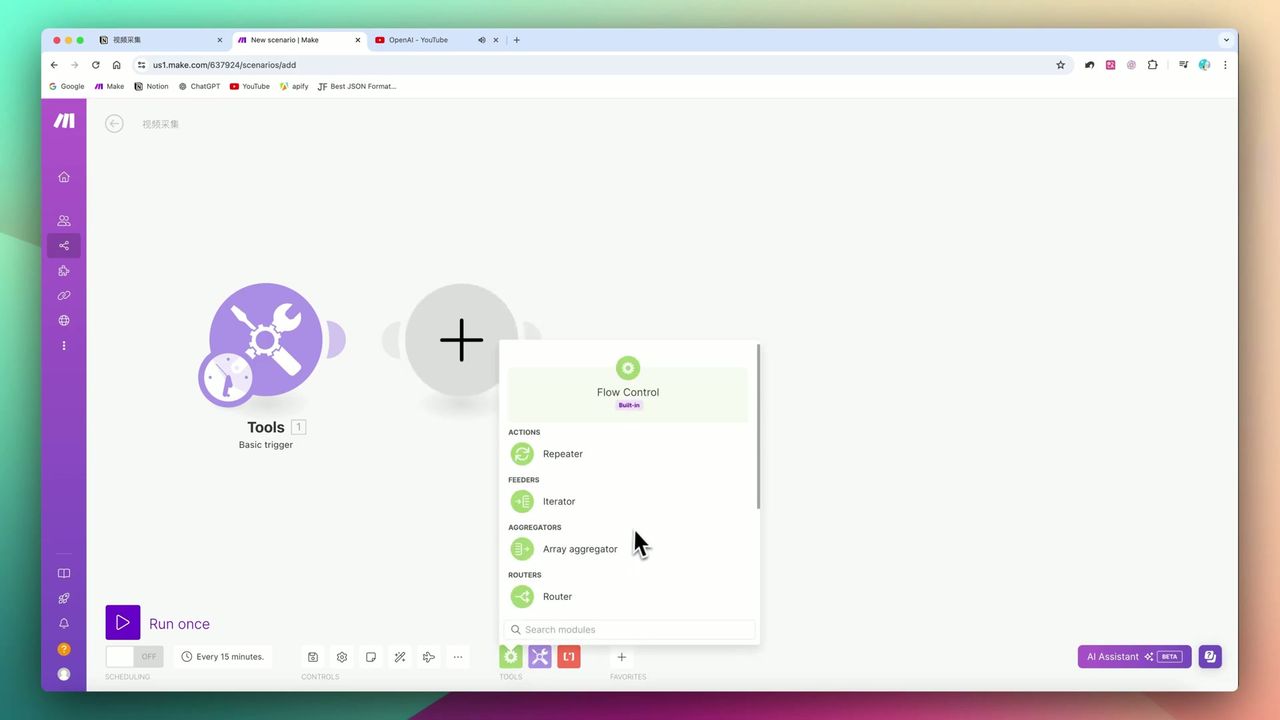 Using Iterator to process multiple channel links
Step 1: Configure Channel Input
Use Make’s Basic Trigger with Iterator to input multiple channel links at once:
Steps:
- Add Basic Trigger module
- Input channel URL array
- Add Iterator to split array
Important: URL format must include
https://orhttp://, otherwise transmission to Apify will fail.
Step 2: Configure Apify Scraping
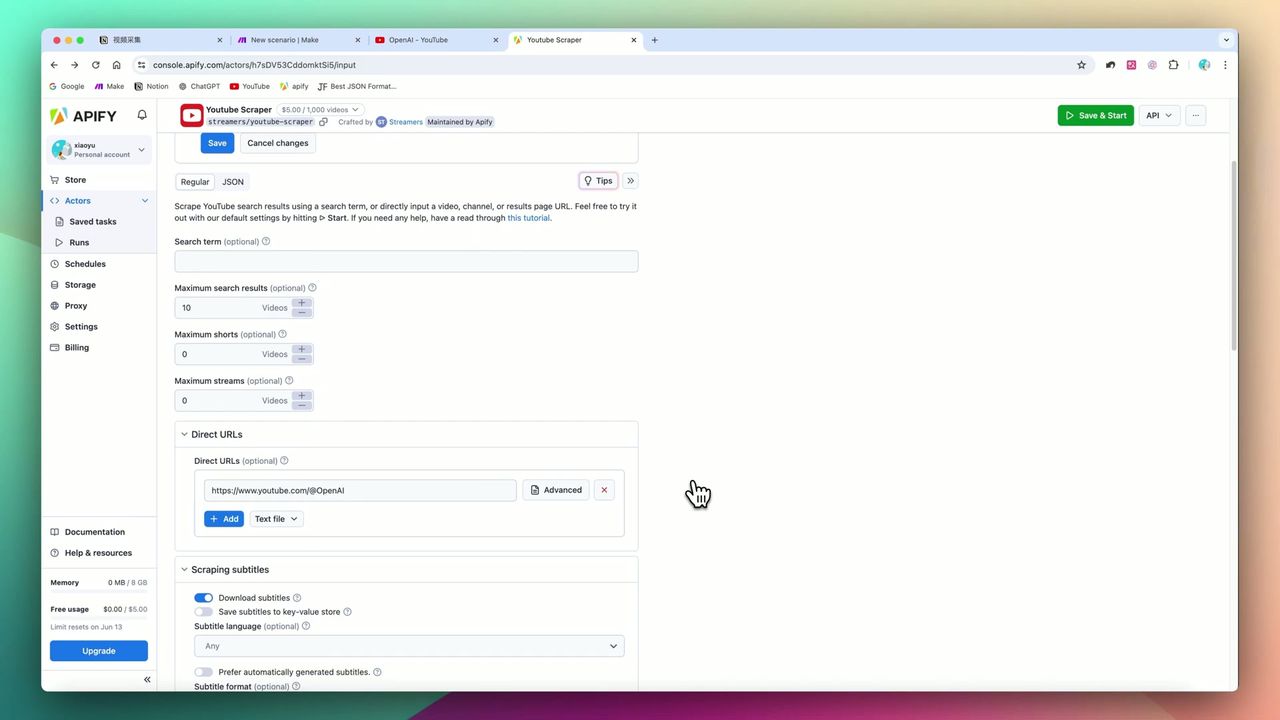 Control scraper behavior via JSON
Add Apify module in Make, configure YouTube Scraper Actor:
JSON Parameter Example:
{
  "startUrls": [
    {"url": "{{channel_url}}"}
  ],
  "maxResults": 20,
  "dateFilter": "thisWeek",
  "downloadSubtitles": true
}
Key Parameters:
maxResults- Maximum scrape countdateFilter- Time filter (thisWeek/thisYear)downloadSubtitles- Whether to download subtitles
Step 3: Configure Data Mapping
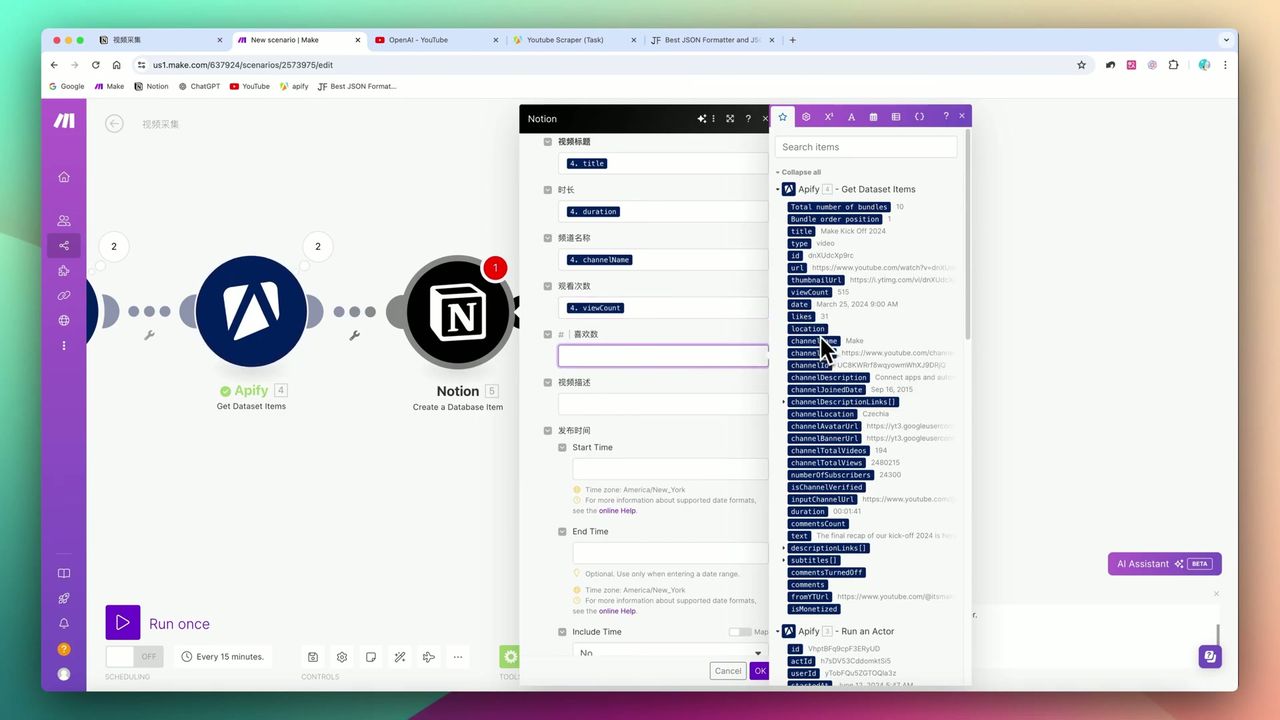 Map Apify data to corresponding Notion fields
Important: Before configuring Notion mapping, you must run the Apify module once completely to get sample data. Otherwise Make cannot recognize the data structure and subsequent steps won’t find mappable variables.
Step 4: Handle Missing Subtitles
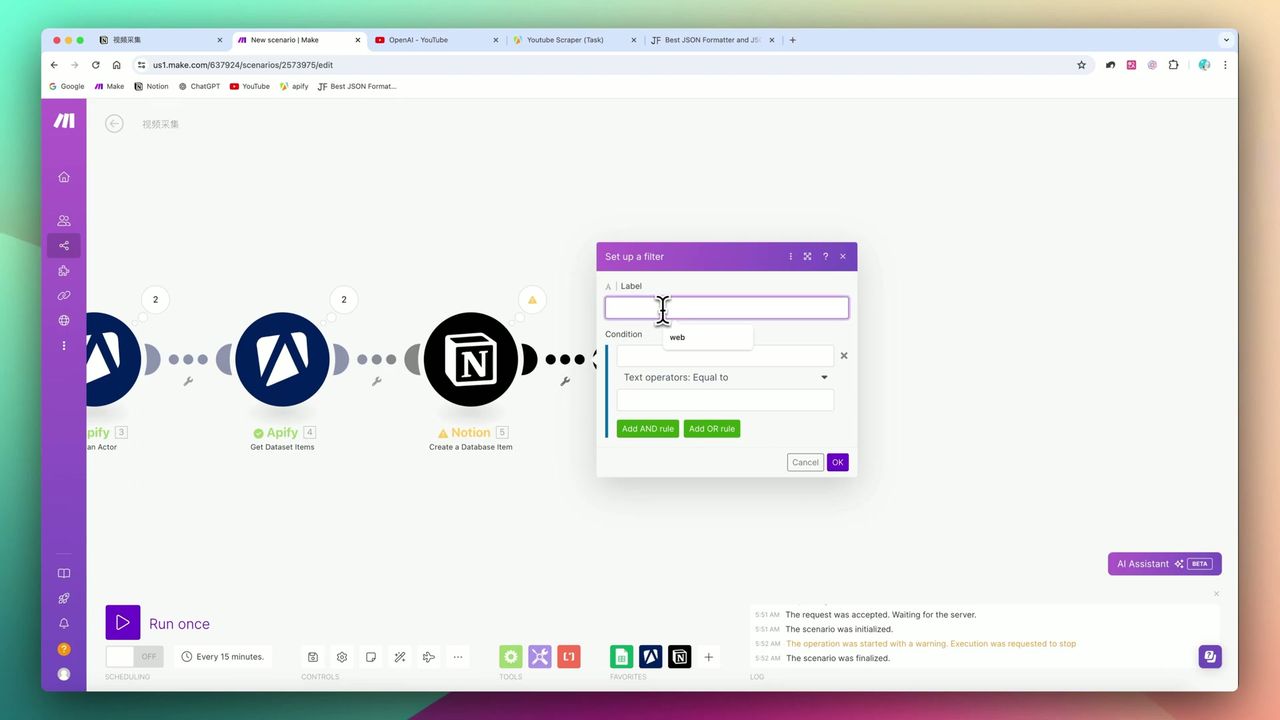 Set condition: Subtitles exist
Not all YouTube videos have subtitles. Without a filter, empty values written to Notion will cause workflow errors.
Solution:
- Add Filter module
- Set condition to: Subtitle field Exists
- Only videos with subtitles continue processing
Subtitle Storage Method
Subtitle content is typically very long, exceeding Notion table property character limits.
Correct Approach:
- Cannot store in Text property
- Use
Append a page contentmethod - Add subtitles as paragraph blocks in page body
Two Practical Strategies
Strategy 1: Historical Data Deep Clean
Configuration:
- MaxResults: 500 or 1000
- dateFilter: thisYear or not set
- Run Method: Manual one-time
Purpose: Build a complete archive of a channel’s past videos in one go.
Strategy 2: Periodic Incremental Updates
Configuration:
- MaxResults: 20
- dateFilter: thisWeek
- Schedule: Every Sunday evening
Purpose: Low-cost automated tracking of latest updates, keeping knowledge base fresh.
Important Notes
Common “pitfalls” in actual deployment:
-
URL format must be precise - Channel links must include
https://, otherwise Apify errors -
“Run once first” forced logic - Must run Apify first to get sample data before configuring Notion mapping
-
Missing subtitles cause crashes - Must set Filter to filter videos without subtitles
-
Notion cell character limit - Subtitle content must use Append Page Content to write to body
Use Cases
Recommended For
- Content Creators - Monitor competitor channels or find content inspiration
- AI Application Developers - Need large amounts of video subtitle text as datasets
- Knowledge Management Enthusiasts - Build personalized video knowledge bases
May Not Suit
- Complete beginners with no JSON/API knowledge
- Users who just need simple video bookmarking (YouTube’s built-in feature suffices)
FAQ
How many videos can I scrape?
Configure via MaxResults parameter - supports 20, 500, 1000, etc., depending on your Apify quota and needs.
What if a video has no subtitles?
You must set up a Filter to check if subtitles exist. Otherwise, empty values will cause the entire workflow to fail.
How to store long subtitle content?
Subtitles exceed Notion table property character limits. You must use the Append Page Content method to add them as paragraph blocks in the page body.
Does it support scheduled auto-updates?
Yes. Set it to run weekly with the thisWeek filter for incremental updates, keeping your knowledge base fresh at low cost.
Next Steps
After mastering the basic workflow, you can try:
- Add AI summary module to auto-generate video summaries
- Integrate translation API to handle multilingual subtitles
- Add more channel monitoring
- Set up notification alerts for new videos
Feel free to leave comments if you have questions!
FAQ
- How many videos can I scrape?
- Configure via MaxResults parameter - supports 20, 500, 1000, etc., depending on your Apify quota and needs.
- What if a video has no subtitles?
- You must set up a Filter to check if subtitles exist. Otherwise, empty values will cause the entire workflow to fail.
- How to store long subtitle content?
- Subtitles exceed Notion table property character limits. You must use the Append Page Content method to add them as paragraph blocks in the page body.
- Does it support scheduled auto-updates?
- Yes. Set it to run weekly with the thisWeek filter for incremental updates, keeping your knowledge base fresh at low cost.
Start Building Your Automation Today
Join 500,000+ users automating their work with Make.com. No coding required, free to start.
Get Started FreeRelated Tutorials
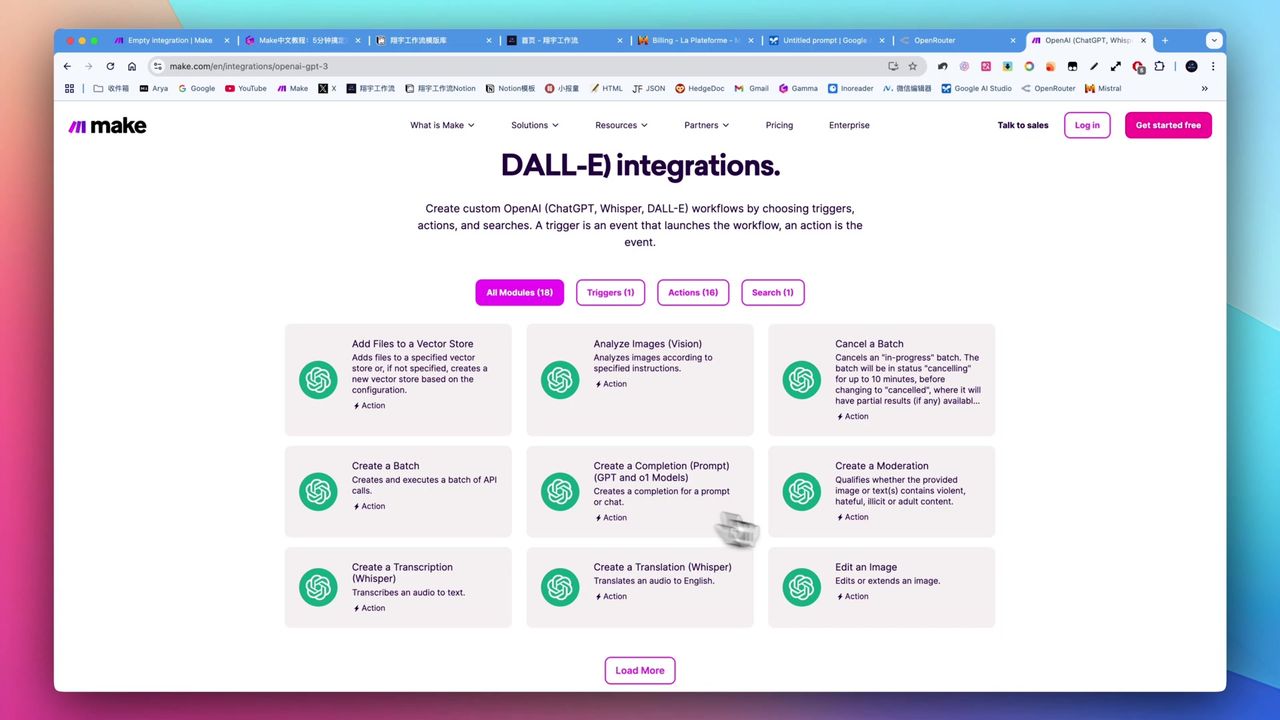
Make.com Tutorial: Build Your First Workflow in 5 Minutes
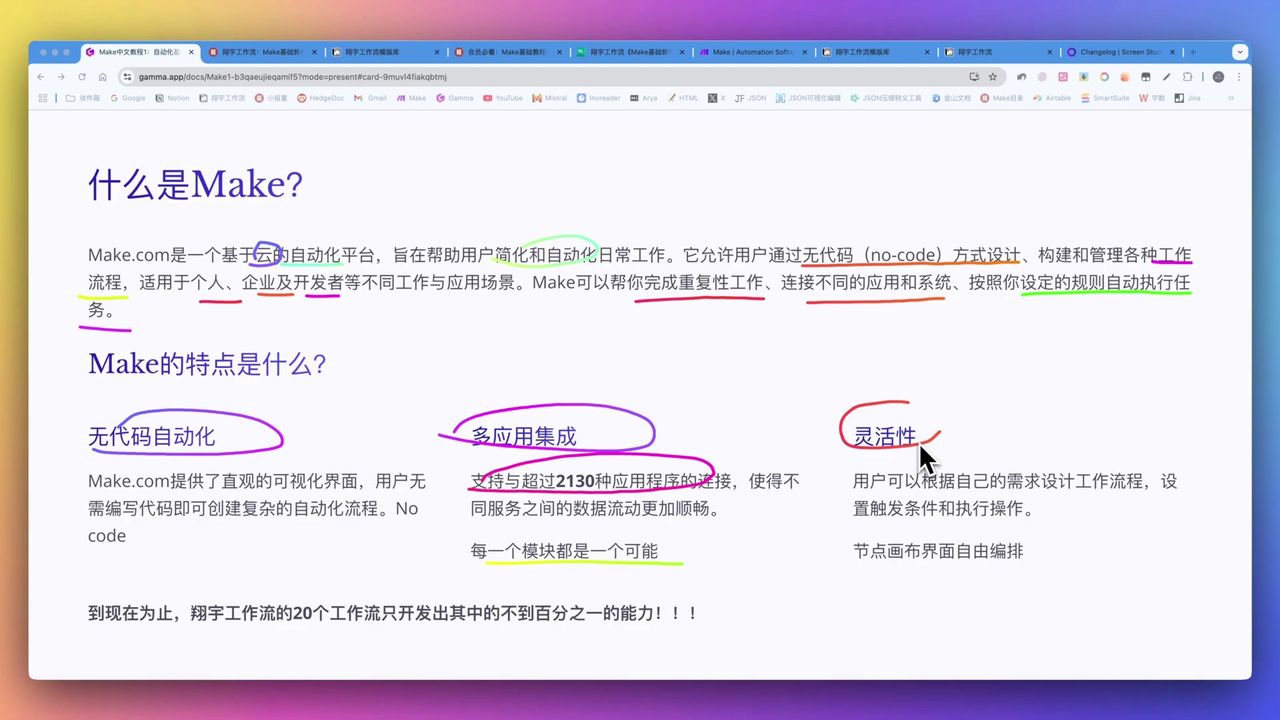
Make.com Core Concepts: Automation Fundamentals Explained
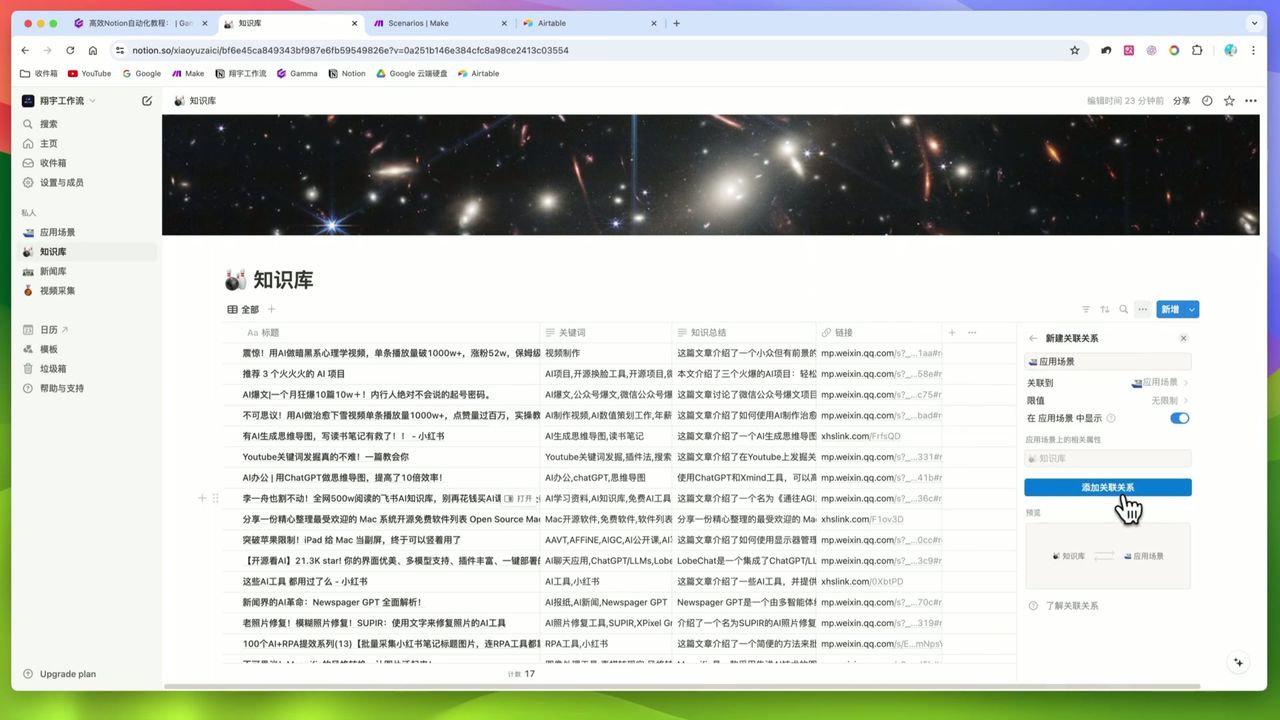
Auto-Classify Notion with AI Using Make.com
Automate Research Paper Summaries with Make.com
About the author
Alex Chen
Automation Expert & Technical Writer
Alex Chen is a certified Make.com expert with 5+ years of experience building enterprise automation solutions. Former software engineer at tech startups, now dedicated to helping businesses leverage AI and no-code tools for efficiency.
Credentials